
Bank State Branches
BSB codes are used to uniquely identify each branch of each bank in Australia. Ready Pay offers you the facility to maintain the list of all known BSB codes by downloading a file from the website, thereby ensuring that you always have the most recent list of BSB numbers available. You can also enter a new BSB number manually.
Updating the BSB numbers Data Table:
- Go to Navigator > Company Definitions > Maintain Company > Country Definitions.
- Click on the required Country node.
- Click on the Bank State Branches node.
The Bank State Branch screen will open.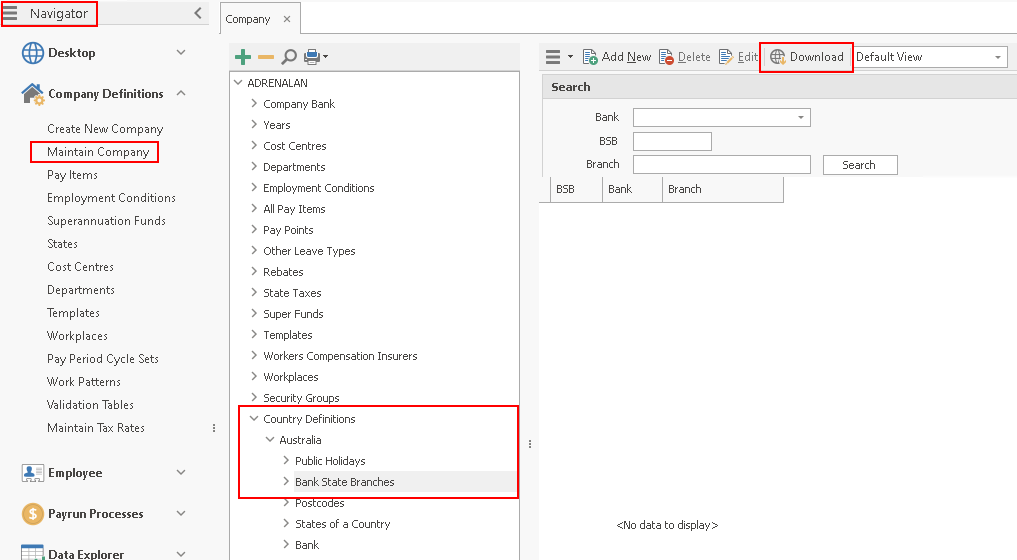
- Click on the Download button
 .
.
The BSB Merge Transfer Wizard will open.
Highlight the file with the most recent date and click on the Download button.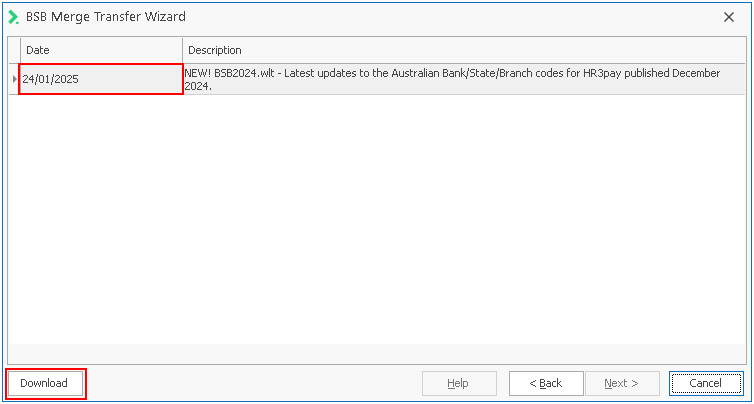
- The process can take a few minutes to run. Once completed a message widow will advise the records have been updated.
Click OK to close the Wizard.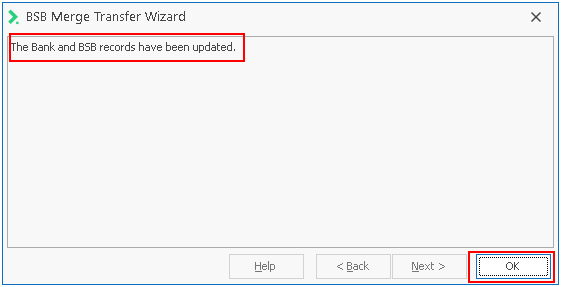
If you update the BSB numbers in this way, this will automatically update all the Bank names too. Therefore you will never need to update both Bank State Branches and Bank.
Searching for BSB number or bank:
You can enter a BSB number to search for the bank or branch to which it refers or enter a bank or branch to search for its BSB number.
- Go to Navigator > Maintain Company > Country Definitions.
- Click on the required Country) node.
- Click on the Bank State Branches node.
The Bank State Branch screen will open. - Enter the information that you have available in either the Bank, BSB or Branch fields or in more than one field if you have more information.
- Click on the Search button.
Select the entry you require from the list that is returned.
Adding a New BSB Number Manually
- Go to Navigator > Maintain Company > Country Definitions.
- Click on the required Country node.
- Click on the Bank State Branch node.
- Click on the Add New button.
The Bank State Branches screen will open. - Complete the following details:
| Field | Explanation |
|---|---|
| Country | Select the country from the drop down list. This will mainly be Australia or New Zealand. |
| Bank | The name of the bank. |
| Branch | The branch at which the account is held. |
| BSB | The BSB number that you wish to add. |
| Address 1 | The physical address of the branch. |
| Suburb | The suburb in which the branch is located. |
| State | The state in which the branch is located. |
- When you have entered all the required information, click OK.
The new BSB will be validated and added to the table.